

Connect Digital Manager Guru to Nevian
Connect Digital Manager Guru so sales and payment changes reach Nevian and can be matched to the visit that brought the buyer.
What you need
- A Digital Manager Guru account with permission to configure notifications.
- An active Nevian plan and an owner, admin or member role. Viewers cannot connect integrations.
- Keep the checkout and Nevian tabs open side by side.
Steps
In Nevian, open Integrations → Add integration (Connect provider in an empty workspace), choose Digital Manager Guru and click Next with the platform open in another tab.
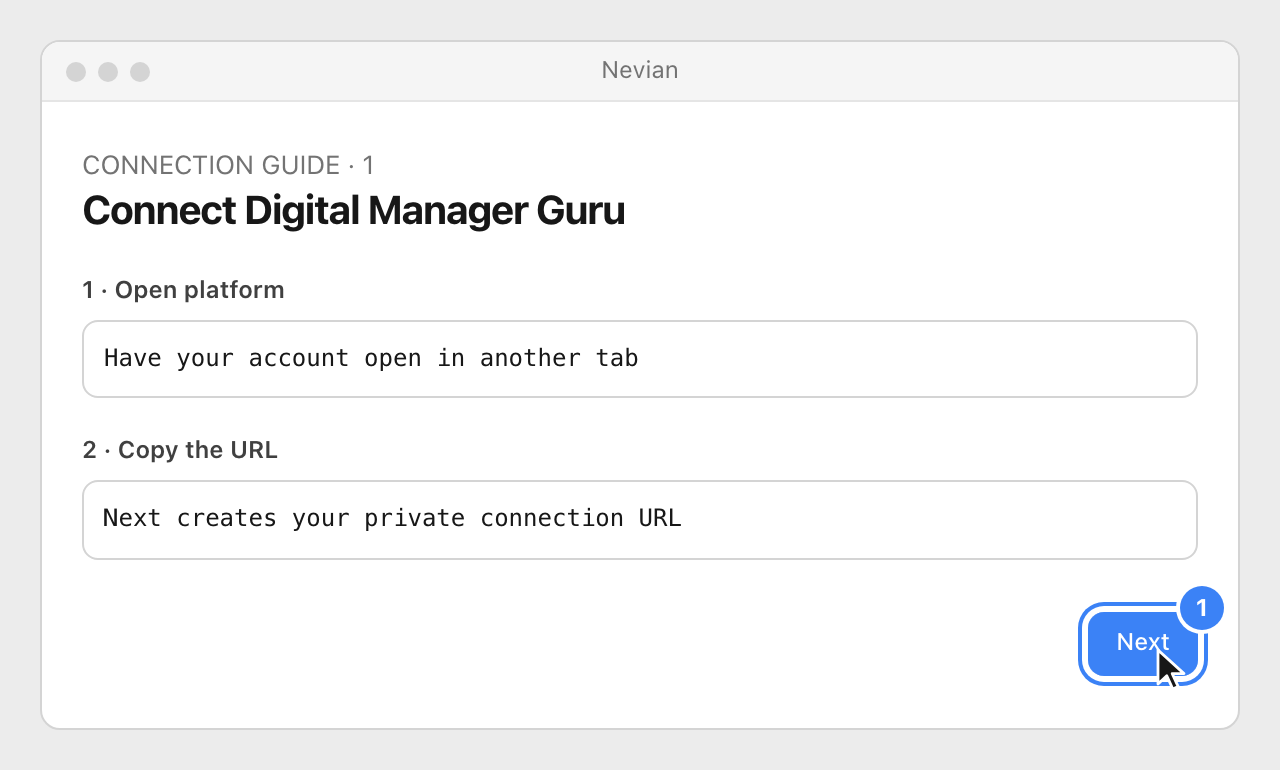
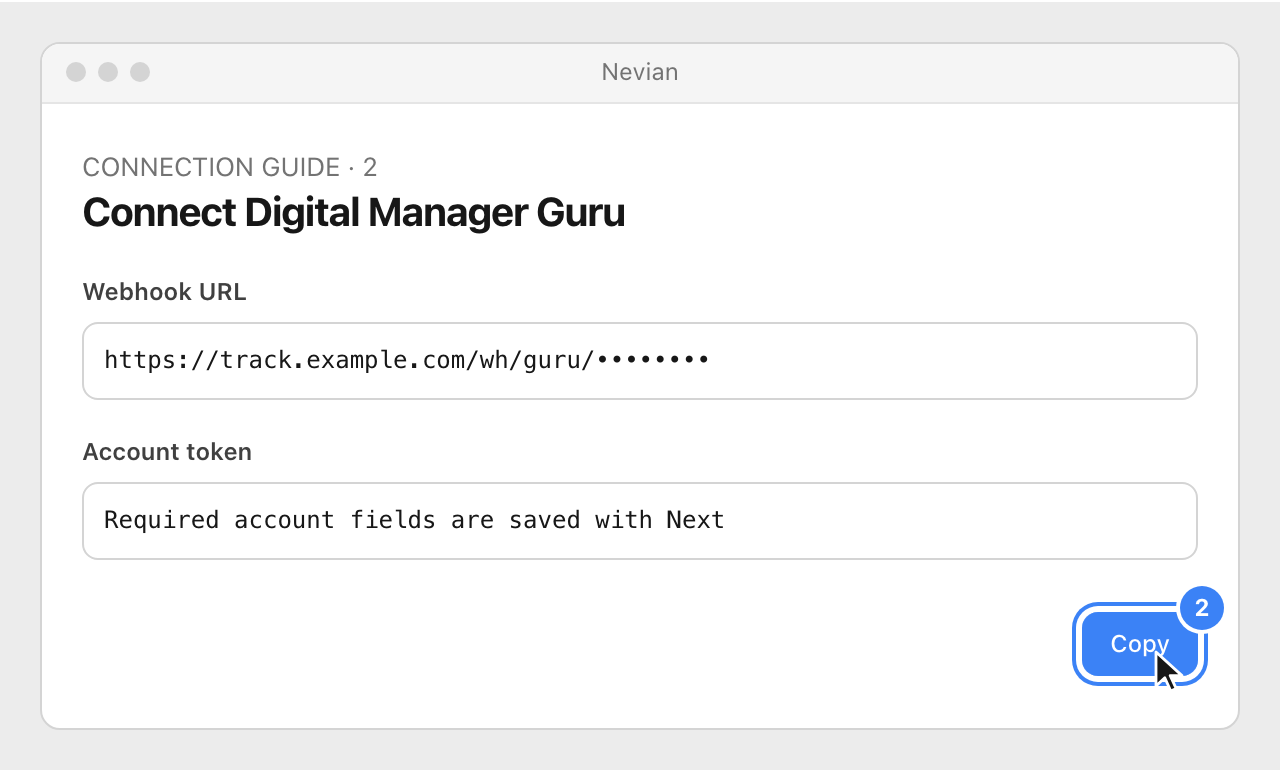
Copy the complete Webhook URL. Keep it private and leave this window open while you configure Digital Manager Guru.
In Guru, open Configurações → Webhooks → Vendas → Adicionar Webhook.
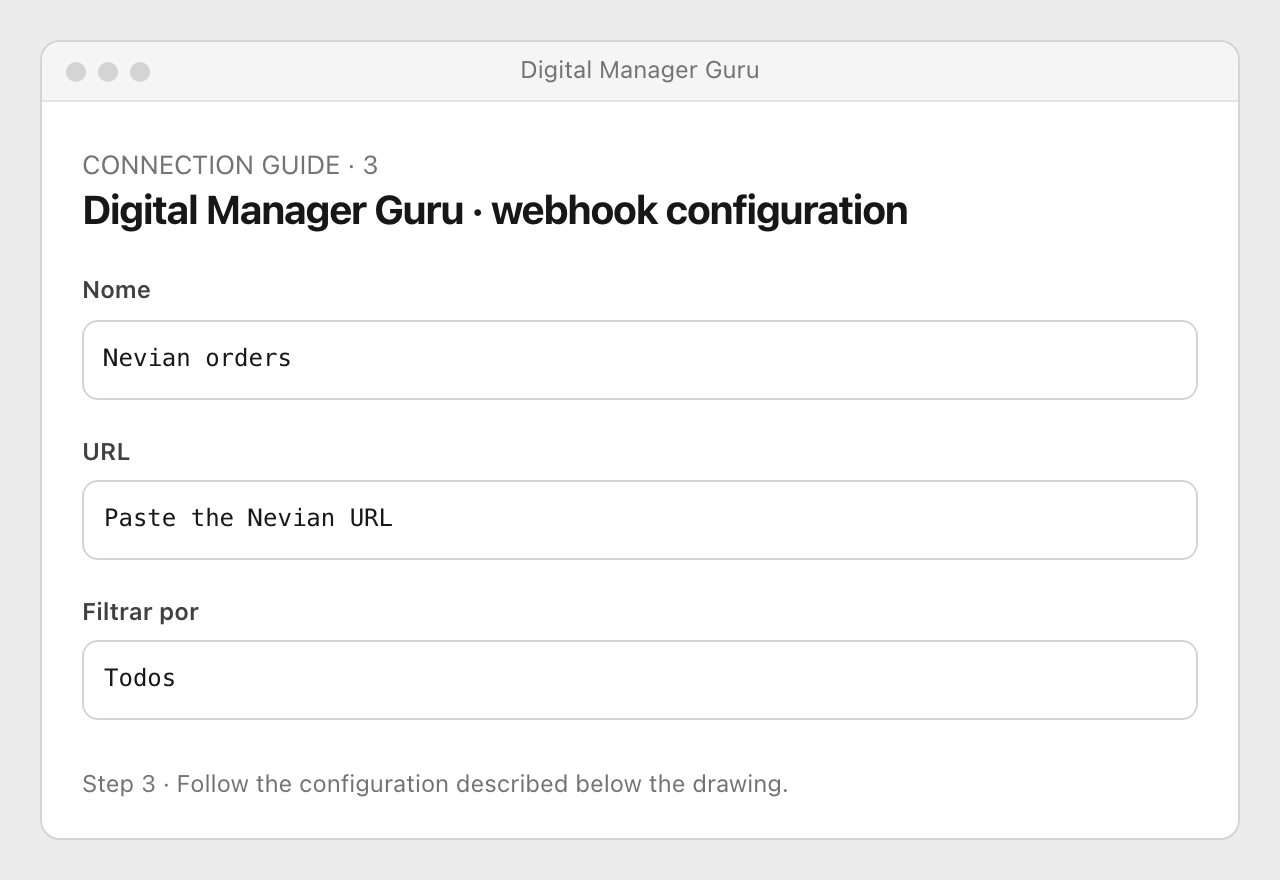
Enter a name and URL, enable the sale statuses, use the required product scope and leave the webhook active before choosing Enviar. Configure subscription notifications with the same URL too, including canceled, expired, past due and trial statuses.
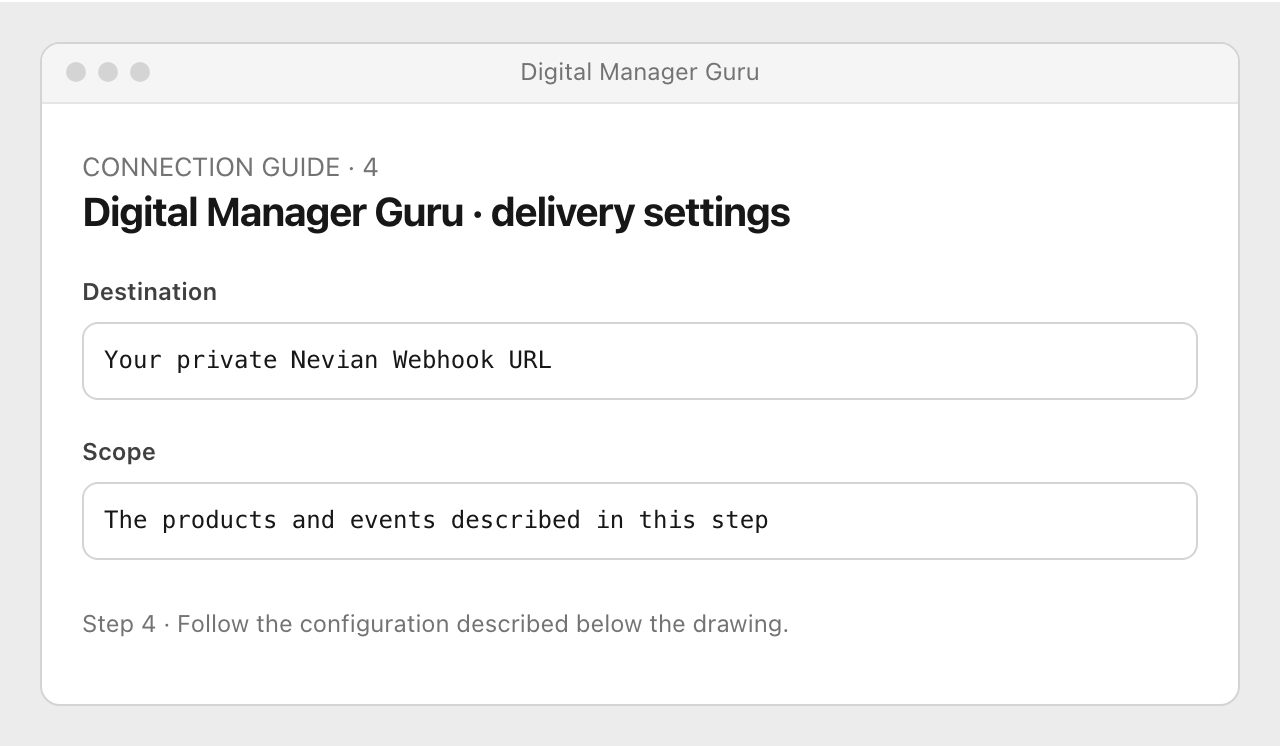
Copy your Token API: in Guru, open the top right menu Minha Conta → API (40 letters and numbers). Use the Token API, not a User Token. Back in Nevian, paste it in the Token API field and click Next. It is optional: without it, the key inside your Webhook URL proves each call is yours.
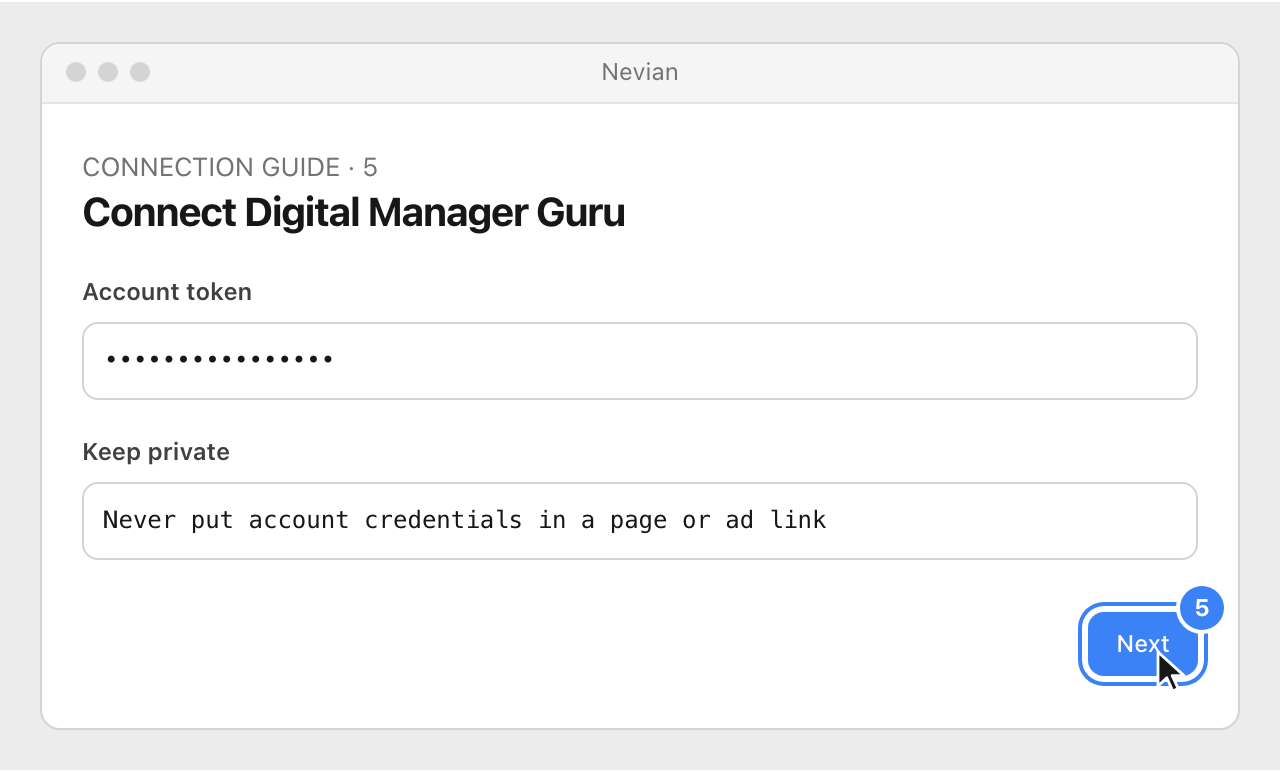
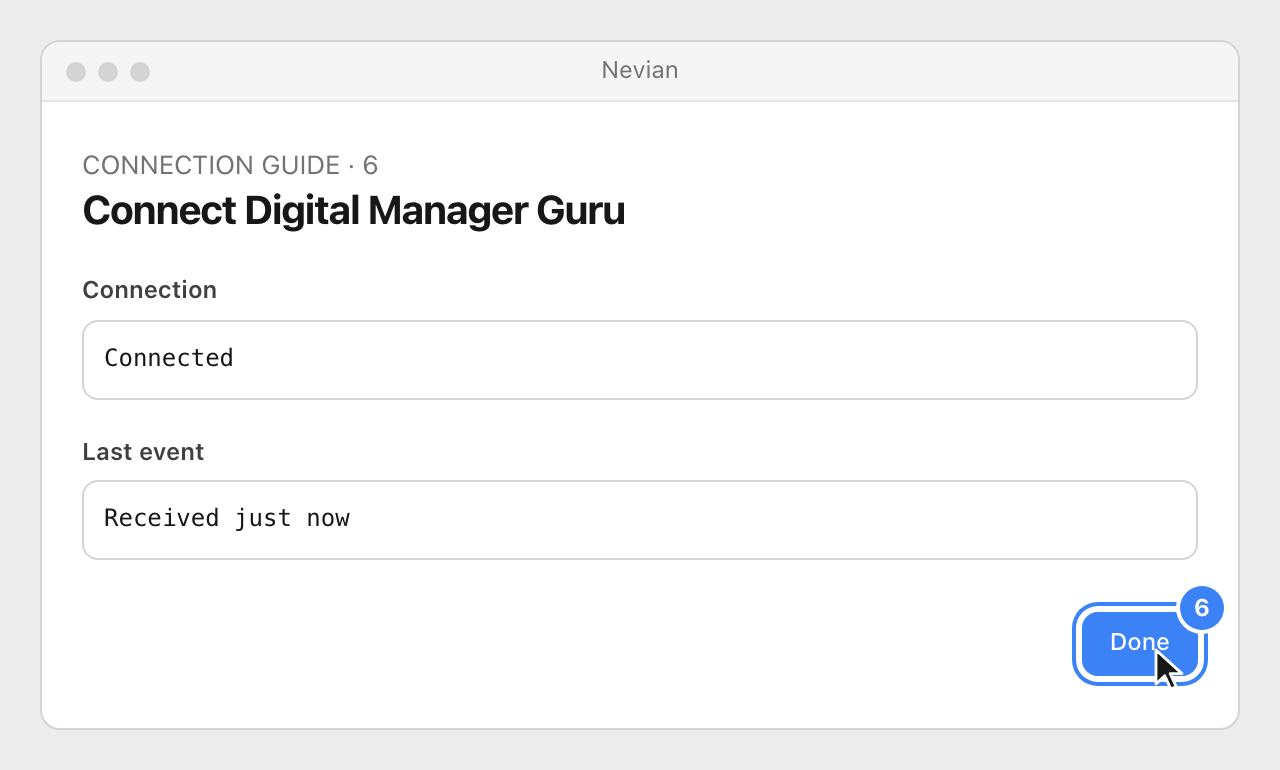
Back in Nevian, go on to the last step of the window. It reads Connected. Waiting for the first sale. Click Done: your first sale shows up by itself.
Guru sends the Token API as api_token inside every webhook, and Nevian checks it once it is saved.
Check that it works
- The Digital Manager Guru card in Integrations shows it as connected right away, waiting for the first sale.
- The first real sale shows up in Logs → Webhooks and in the reports. A delivered webhook can be logged without creating a sale when the event is informational.
- When Guru sends the same order again, Nevian updates its record and does not add a second sale.
- Guru does not mark test events. If one arrives, Nevian records it as a sale: open it in Logs → Conversions and click Mark as test, and it stays out of revenue.
- Links to
clkdmg.siteare decorated withsrc. Check the order received by Nevian for that visit reference.
Problems
No sale shows up after a real sale
Check the complete URL, event subscriptions and product scope. If you rotated the integration key, replace the URL in the provider too.
The call was rejected
Open it in Logs → Webhooks: the reason says exactly what is wrong and what to do. If the token does not match, copy the Token API again from Minha Conta → API and paste it in the Guru card in Integrations. After you fix it, resend the rejected event from the provider, so it is not lost.
No matching click
A call that is not linked to a visit means the buyer reached the checkout without the click ID: follow the click ID instructions above.
Still stuck? Chat with us on WhatsApp or write to [email protected].
Images are our own drawings and configuration diagrams, not screenshots. Use the current values from your account; the examples contain no live credentials.